

- If your organization has chosen the Automatic Invitations method, you will not need to manually enter an email address. users from your organization will be able to log in to the system automatically.
- If the
No Automatic Enrollmentis selected, follow these steps to invite users
- Access the Organization Profile:
- Navigate to the
Organization Profilesection under the user icon located on the top right side of the platform.
- Navigate to the

- Click on the Invite Button:
- Within the Organization Profile, locate and click the
Invitebutton (under the Members tab).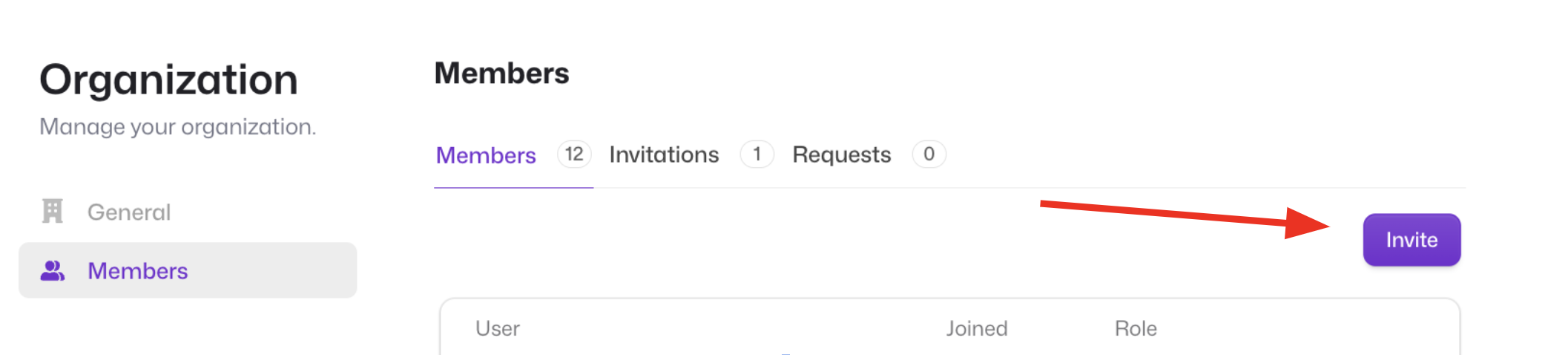
- Within the Organization Profile, locate and click the
- You will be prompted to enter the user’s email address.
- Choose the appropriate role for the user:
- Admin: This role provides the user with administrative privileges.
- Member: This role provides the user with standard access rights.
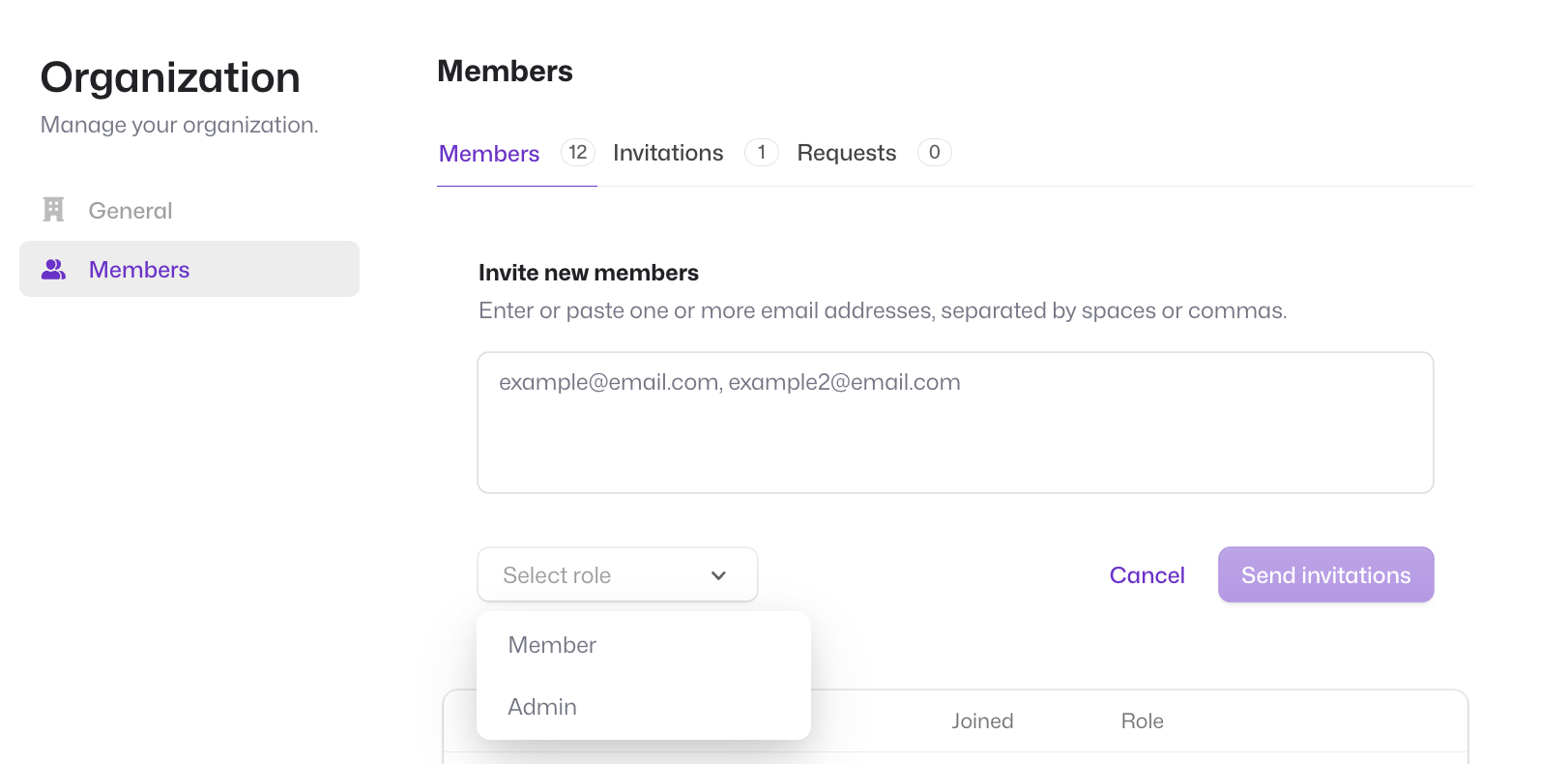
- Choose the appropriate role for the user:
- Send the Invitation:
- Once you’ve entered the necessary information, click
Send Invitation. - The user will receive an invitation email with instructions on how to complete their registration (if applicable).
- Remove user
- To remove a user, navigate to the
Members Sectionin theOrganization Profilesection. Click on the 3 dots all the way to the right of the user name. Click on the 3 dots and choose the Remove member option