

User Invitation System
This section explains how to use the user invitation system within Sawmills platform. The system provides flexibility by offering three different invitation methods, allowing administrators to choose the best approach for their organization. Before inviting users to your organization, follow these steps to configure your organization’s invitation method-
Navigate to Your Profile:
- Click on your profile button located at the top right corner of the application.
-
Open the Organization Profile:
- From the drop-down menu, select “Organization Profile.”\

- From the drop-down menu, select “Organization Profile.”\
-
Add a New Domain:
- Click on the ”+ Add Domain” button.
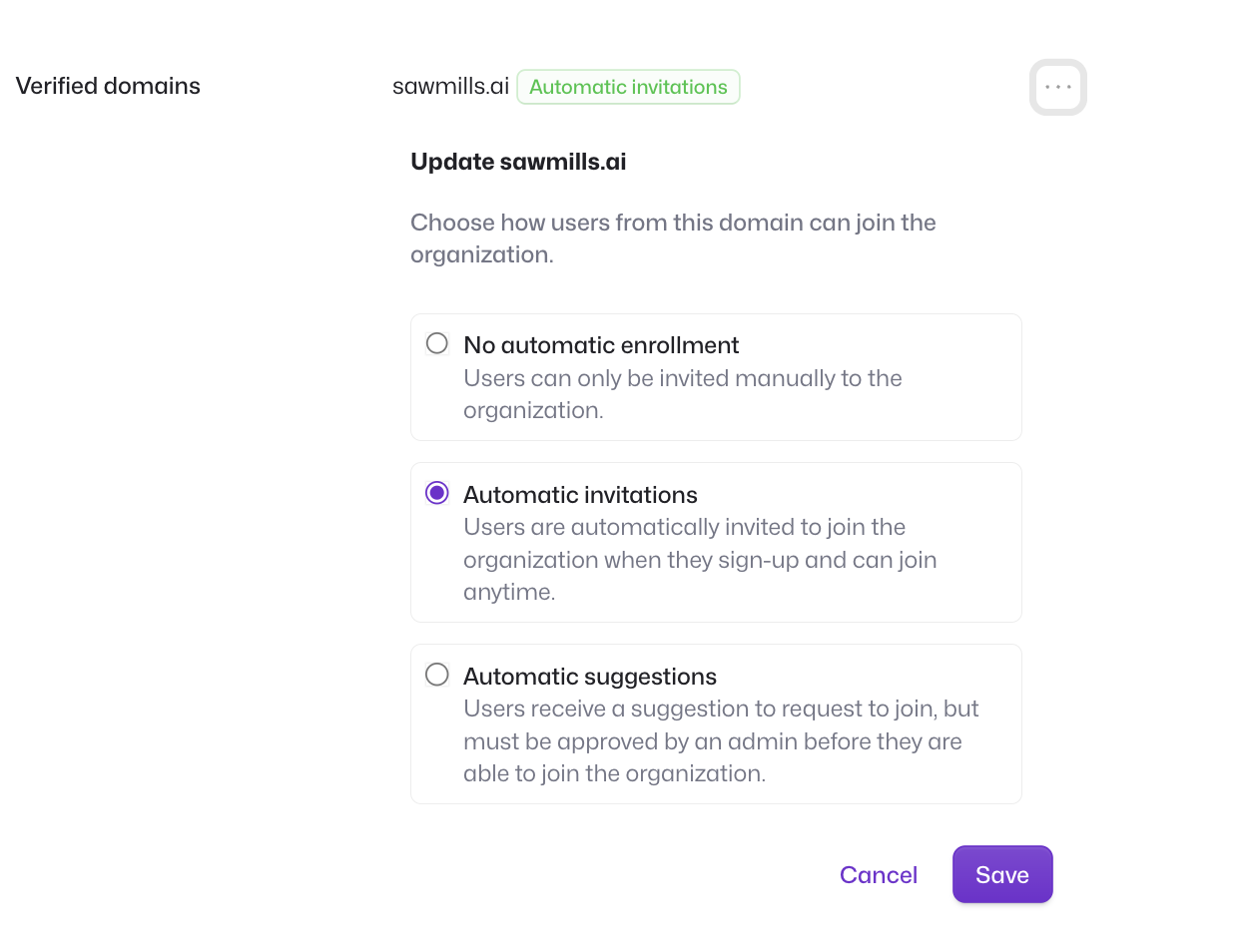
- You will be presented with three Invitation methods for inviting users to your organization.\
-
Choose invitation method
Choose the preferred methods to invite users to the platform:
- No Automatic Enrollment:
- Users can only be invited manually to the organization.
- Administrators must explicitly send invitations for each user they wish to add.
- This method ensures full control over who is invited to join the platform.
- Automatic Invitations:
- Users are automatically invited to join the organization when they sign up.
- This method allows users to join the organization anytime without waiting for an invitation, the org is defined by the verified domain the admin configures.
- Ideal for organizations that want to streamline the onboarding process.
- Automatic Suggestions:
- Users receive a suggestion to request to join the organization when they sign up. the org is defined by the verified domain the admin configures.
- After receiving the suggestion, users must be approved by an admin before they can join.
- This method offers a balance between control and convenience, allowing admins to approve new members while encouraging user engagement.
- Edit or delete domain
- To edit or delete a domain, click on the 3 dots on the top right part of the
verified domainsection and follow the instructions